Changelog

The latest improvements to BuildBuddy.

·Maggie Lou

Fix failing builds with bb agent fix

bb agent fix reproduces a failure from a previous invocation and fixes it by editing the current working tree.

The agent reruns the invocation's original Bazel command to reproduce the failure, inspects the failure output and relevant source code, applies a minimal fix, and reruns the command to verify the fix is valid.

When run locally, the changes are applied to the current working tree. When run remotely, the diffset is uploaded to the 'Artifacts' tab of the remote agent fix run. It can be fetched from the invocation using the GetInvocation API and applied to a local workspace using git apply <DIFF_FILE>.

Run it from the workspace that produced the failure, with an invocation ID or URL:

# Fix every failing target in the invocation.
bb agent fix <INVOCATION_ID>

# Fix only a single failing target, or only the test cases matching a filter.
bb agent fix <INVOCATION_ID> //foo:bar_test --test_filter=TestBaz

See the documentation for more details.
·Maggie Lou

Configure the BuildBuddy CLI with .bbrc

You can now save BuildBuddy CLI options in a .bbrc file. It uses the same section and named-config syntax as a .bazelrc, but it configures bb rather than Bazel.

For example, this .bbrc enables streamed logs for every bb run and uses Linux runners for bb remote:

.bbrc
run --stream_run_logs
remote --os=linux
# Runs: bb run --stream_run_logs //app
bb run //app

# Runs: bb remote --os=linux test //...
bb remote test //...

You can also define named configs and select them with --bb_config:

.bbrc
remote:linux --os=linux
remote:linux --arch=amd64
bb remote --bb_config=linux test //...

The CLI automatically reads .bbrc from the workspace root and your home directory.

Only BuildBuddy CLI flags are allowed in .bbrc; regular Bazel options still belong in .bazelrc.

See the .bbrc documentation for more details.

·Maggie Lou

Analyze slow builds with bb agent analyze-profile

You can now use the bb CLI to analyze a Bazel timing profile with an AI coding agent using bb agent analyze-profile.

The command downloads the timing profile for an invocation and returns a detailed report with actionable recommendations for speeding up the build.

The command accepts an invocation ID or URL:

bb agent analyze-profile <INVOCATION_ID>
bb agent analyze-profile https://app.buildbuddy.io/invocation/<INVOCATION_ID>

The command supports interpreting the timing profile with --agent=codex or --agent=claude. If available, it uses your locally authenticated Claude Code or Codex subscription. Otherwise you can set the environment variable ANTHROPIC_API_KEY or CODEX_API_KEY to authorize API requests. You can also specify --model and --effort to control the agent's behavior.

bb agent analyze-profile --agent=codex --model=gpt-5.4 --effort=high <INVOCATION_ID>

See the bb agent analyze-profile documentation for more details.

·Maggie Lou

bb detect nondeterminism

You can now use the bb CLI to detect non-deterministic builds using the bb detect nondeterminism command.

The command runs a Bazel command twice with caching disabled, then compares the two compact execution logs with bb explain. Spans whose outputs differ between the two runs are reported as non-deterministic.

# By default, the command runs "build //...".
bb detect nondeterminism

# You can pass any Bazel command to run.
bb detect nondeterminism --bazel_command='build //foo:bar --config=linux'

Sending notifications​

To email all BuildBuddy org admins when non-determinism is detected, add --notify_email. To post a notification to a Slack channel, add --notify_slack=<SECRET_NAME>, where <SECRET_NAME> is the name of a BuildBuddy secret holding a Slack webhook URL.

Sending notifications requires an API key with the notification capability. Set it via the BB_NOTIFY_API_KEY environment variable:

BB_NOTIFY_API_KEY=<API_KEY> bb detect nondeterminism --notify_email

Running on a schedule​

To schedule a nightly nondeterminism check to catch regressions, you can configure a scheduled Workflow in your buildbuddy.yaml:

buildbuddy.yaml
actions:
- name: Nondeterminism check
triggers:
schedule:
crons:
- "0 8 * * *" # 8:00 AM UTC every day
steps:
- run: bb detect nondeterminism --notify_email --notify_slack=SLACK_WEBHOOK_SECRET_NAME
platform_properties:
# Caching is disabled for this check anyway, so recycling adds little.
recycle-runner: false
·Maggie Lou

Schedule Workflows with cron expressions

You can now run BuildBuddy Workflows on a recurring schedule using standard cron expressions. This is useful for nightly builds, periodic integration tests, or any job that should run independently of code pushes or pull requests.

To schedule an action, add a schedule trigger with one or more cron expressions under triggers:

buildbuddy.yaml
actions:
- name: "Nightly tests"
triggers:
schedule:
crons:
- "0 2 * * *" # 2:00 AM UTC every day
steps:
- run: "bazel test //..."

Scheduled runs always execute against the latest commit on your repo's default branch. All cron times are interpreted as UTC, and the minimum supported interval between triggers is 15 minutes.

See the Workflows configuration docs for format details and more examples.

·Brandon Duffany

Usage alerts

You can now configure usage alerts for your BuildBuddy organization.

To access alerting, navigate to Usage > Alerting in the BuildBuddy UI. Daily, weekly, and monthly thresholds can be configured for any usage metric, and organization admins will receive email alerts when configured thresholds are exceeded.

·Maggie Lou

Auto-cancel duplicate CI runs on the same branch

Starting June 1, 2026, BuildBuddy will automatically cancel in-progress Workflow runs when a newer run is triggered for the same action on a non-default branch. This helps avoid wasting resources on outdated runs when, for example, several commits are pushed in quick succession to a pull request branch.

This behavior only applies to non-default branches. Runs on your repo's default branch are not affected.

If you'd like to disable this behavior and allow concurrent runs for an action, set allow_concurrent_runs: true in the action's configuration.

See the Workflows configuration docs for more details.

·Tyler French

End-to-end CDC support

We're excited to announce end-to-end content-defined chunking (CDC) support for Bazel remote caching in BuildBuddy.

With Bazel 9.1 and 8.7 support for --experimental_remote_cache_chunking, large outputs like linker artifacts can be uploaded and downloaded in content-defined chunks instead of as monolithic blobs. That lets BuildBuddy deduplicate similar artifacts across builds, reducing upload bandwidth and storage usage. In one benchmark on the BuildBuddy repo, this showed roughly 40% less uploaded data and a roughly 40% smaller disk cache. Breaking large blobs into smaller reusable pieces also means fewer long-running RPCs and more granular retries.

To enable it, add this flag to your .bazelrc:

common --experimental_remote_cache_chunking

To see the download-side savings, you should also set --disk_cache, since the downloaded chunks need to be stored somewhere in order to be reused locally. We also recommend setting --experimental_disk_cache_gc_max_age to a value below your remote cache TTL—for example, 3h, or 1d if your remote TTL is longer.

Bazel 9.1 and 8.7 support this flag.

For more background, see bazelbuild/bazel#28437.

For a deeper dive, see No More Large Outputs: Introducing Remote Cache CDC.

·Maggie Lou

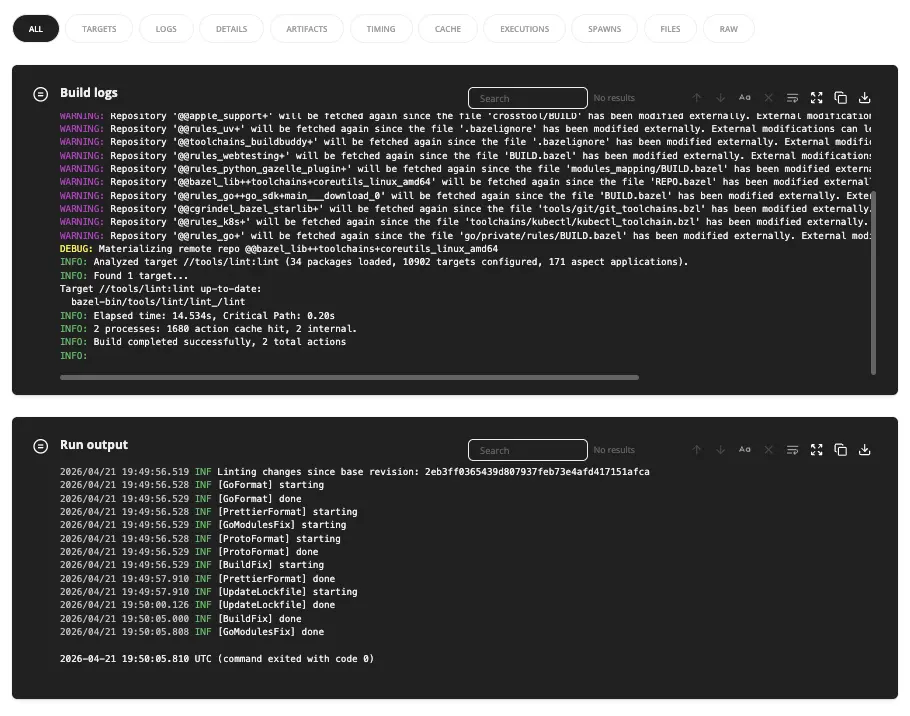
Run log streaming

In addition to build logs, you can now use the bb CLI to stream bazel run executable output to our servers and view live-updating run logs from the UI.

run log streaming

This gives you a durable record of executable output, making it easy to share logs with teammates, or letting you monitor runs while away from your terminal.

To use it:

bb run //app:server --stream_run_logs

By default, if streaming fails, the executable will continue to run. To fail the command immediately, use --on_stream_run_logs_failure=fail.

·Brandon Duffany

BuildBuddy MCP server

BuildBuddy now exposes an MCP endpoint for coding agents and other MCP-capable clients.

MCP provides a way to let agents explore BuildBuddy data for mostly read-only workflows like build and test metadata, logs, artifacts, target statuses, and more.

You can connect agents like Codex, Claude Code, and Gemini CLI to:

https://YOUR-BUILDBUDDY-ORGANIZATION.buildbuddy.io/mcp

Authenticate with:

Authorization: Bearer <api-key>

See the new BuildBuddy MCP Server docs for setup instructions and configuration examples.

·Dan Stowell

Improved handling of short-lived secrets in remote execution

BuildBuddy has supported passing short-lived secrets to remote actions via the env-overrides platform property, which redacts values from action cache entries. The new secret-env-overrides and secret-env-overrides-base64 properties extend this protection by also redacting values from workflow logs.

Pass secrets via remote exec headers so they're injected at invocation time without affecting the action hash:

bazel build //my:target \
--remote_exec_header=x-buildbuddy-platform.secret-env-overrides=API_KEY=sk-abc123,OTHER_KEY=val

For values containing commas or special characters, base64-encode each KEY=VALUE pair:

bazel build //my:target \
--remote_exec_header=x-buildbuddy-platform.secret-env-overrides-base64=$(echo -n 'CREDS={"token": "abc"}' | base64)

See the Secrets docs and RBE platform properties reference for more details.

·Maggie Lou

Changelog

We're excited to introduce the BuildBuddy Changelog!

We're a team of builders, but we historically haven't always made noise about the features we've built. This changelog is where we'll highlight feature launches and meaningful infrastructure improvements.

To get started, we're sharing some high-impact features from the past few years that teams may have missed.

·Tyler French

Dark mode

We're excited to announce dark mode for our UI.

To enable, go to Settings then Preferences under Personal Settings.

·Fabian Meumertzheim

bb explain: understand why your build re-ran actions

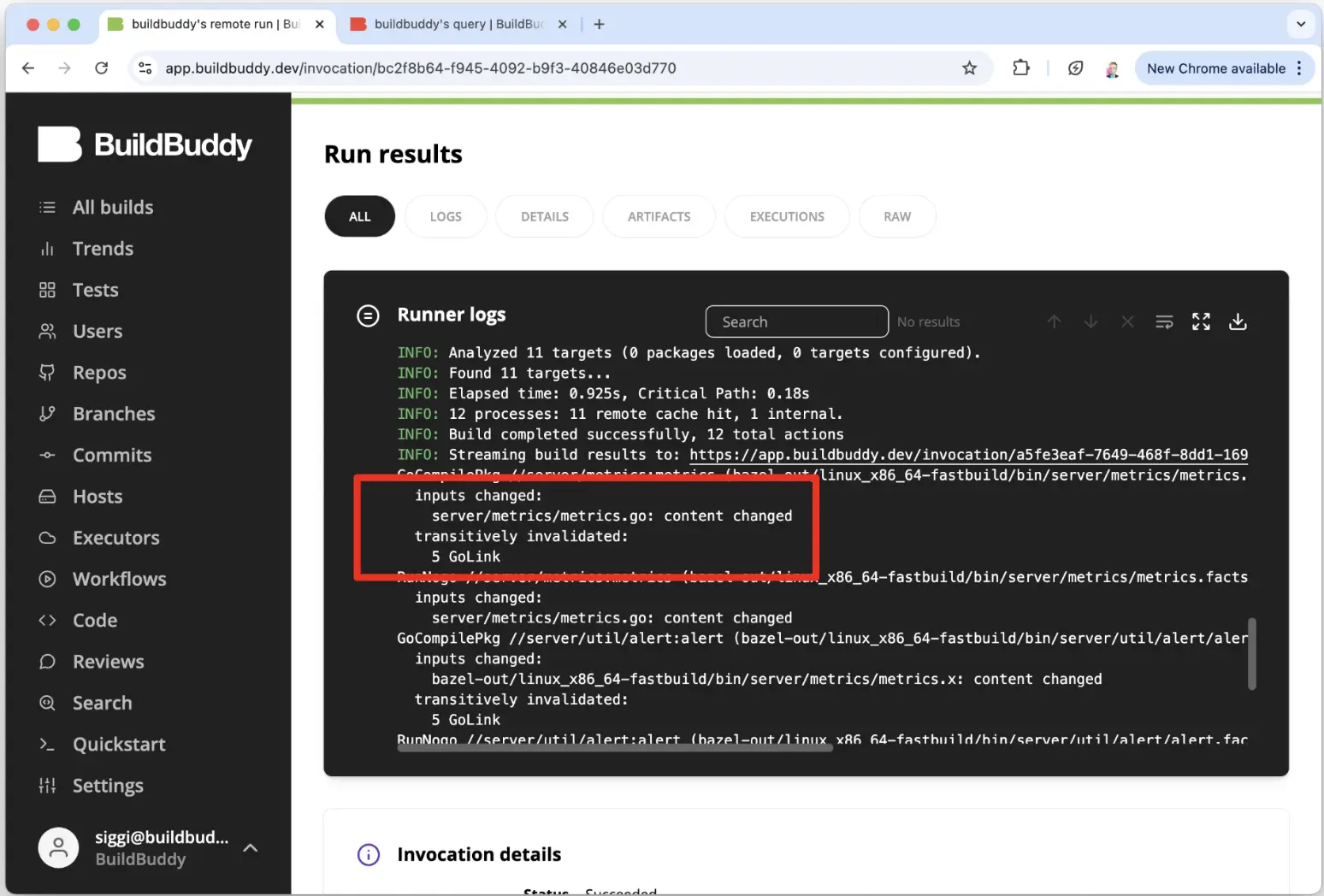
bb explain shows a structural diff of two compact execution logs. It helps answer the common questions: "Why did Bazel re-execute that action?" and "What changed between these builds?"

bb explain

It can highlight non-hermetic outputs and differences in inputs, environment variables, and arguments.

It works with your last two builds automatically, or you can point it at any invocation IDs:

bb explain
bb explain --old <OLD_INVOCATION_ID> --new <NEW_INVOCATION_ID>

You can download the bb CLI here. More details in Fabian's BazelCon talk.

·Jim Hollenbach

Drilldowns: find similarities between slow or failing builds

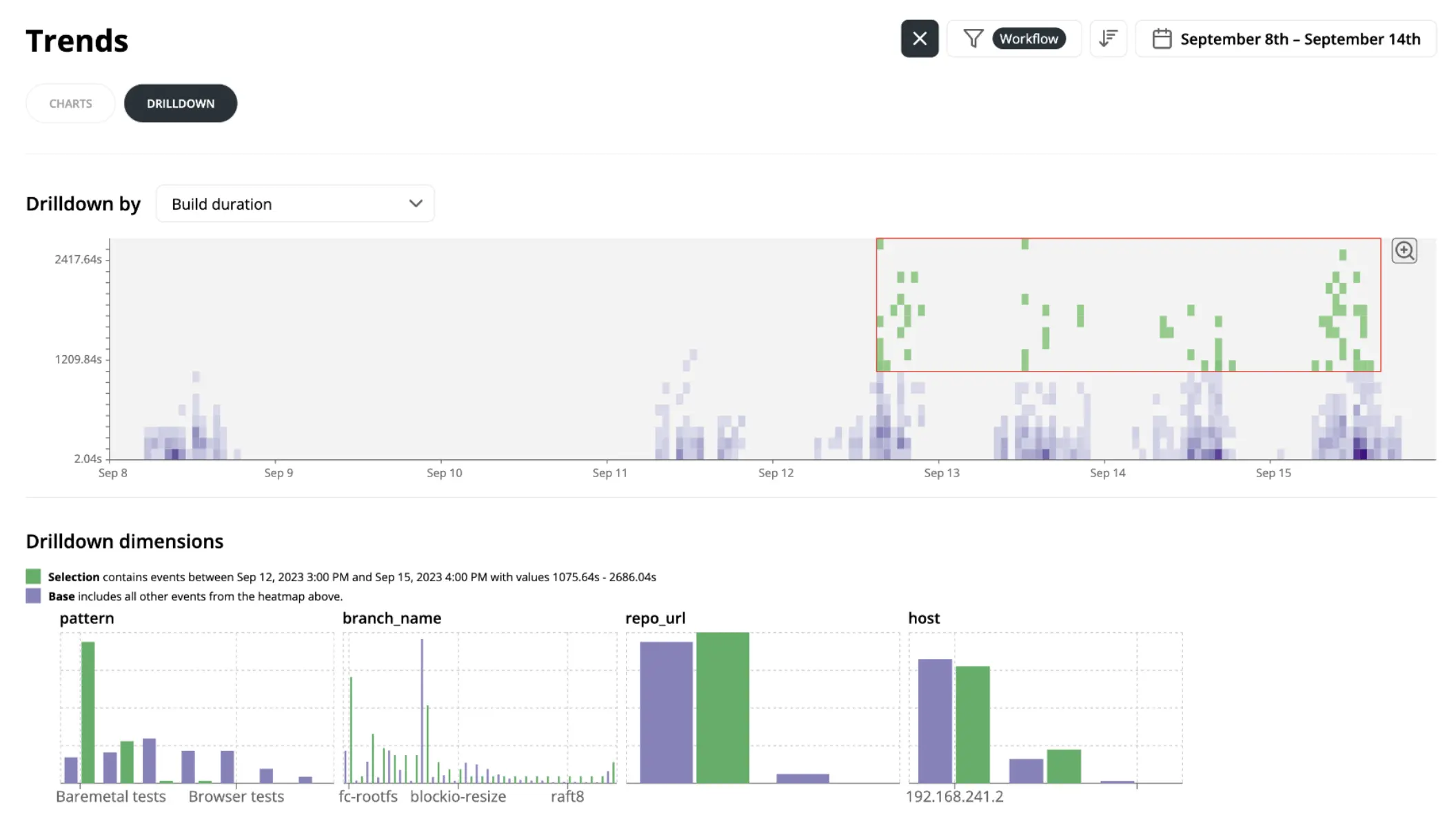
The drilldown view displays heatmaps of build and execution metrics over time. It can help isolate why a subset of builds is slower or failing more often.

You can select a region of outliers on the heatmap, and Drilldowns will compare that selection against the baseline across dimensions like branch, pattern, and tag.

This makes it easier to spot common characteristics of problematic builds.

Available on the sidebar under Drilldowns.

·Siggi Simonarson

Compare invocations: compare two builds side-by-side

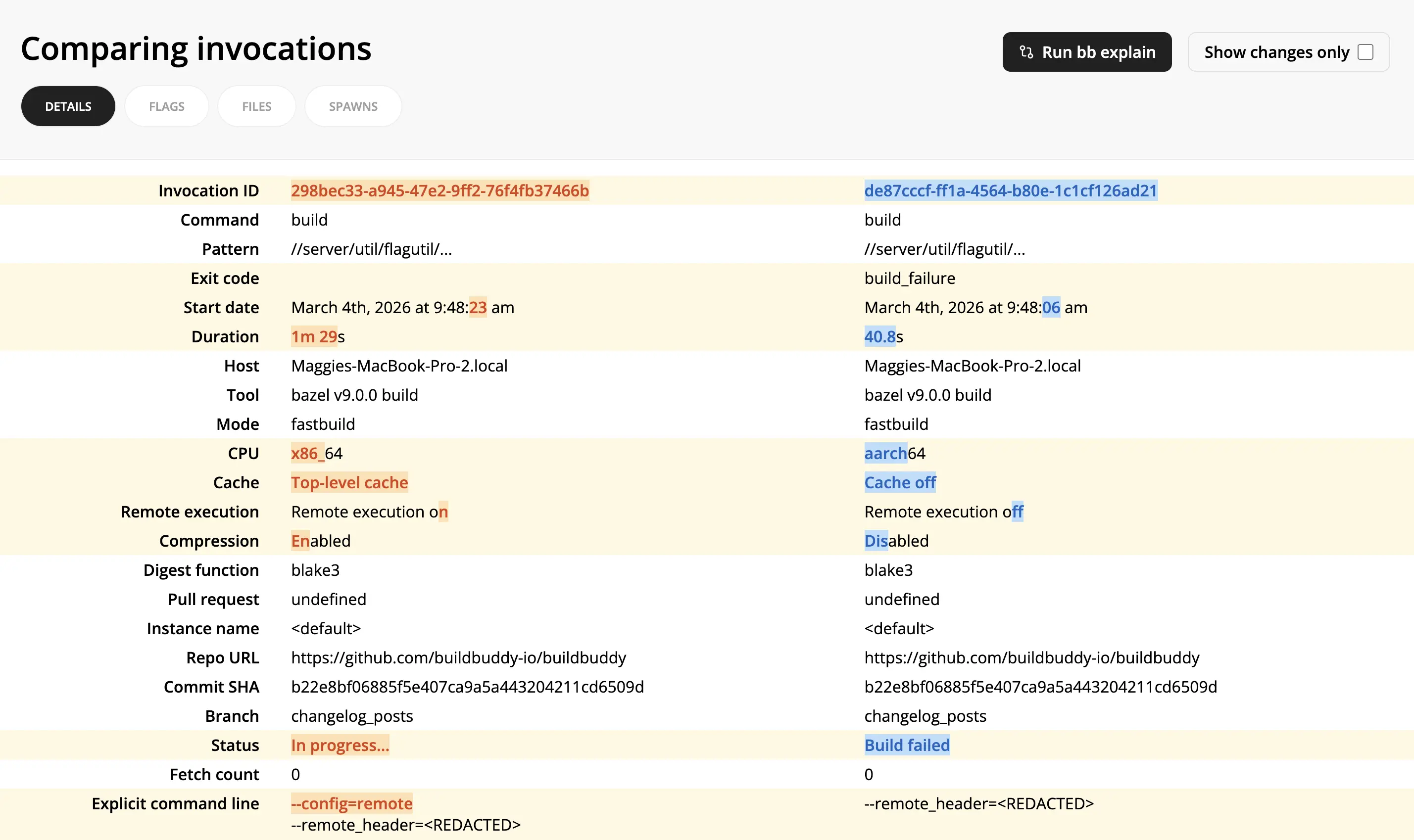
The compare invocations view allows you to diff two invocations side-by-side.

It can help debug why two builds produced different results by showing exactly what changed: different flags, startup options, cache/remote execution settings, status, and more.

To compare invocations:

  1. From one invocation link, select Compare -> Select for comparison in the top right corner.
  2. From another invocation link, select Compare -> Compare with selected.
  3. For even more details on differences between the two invocations, click the Run bb explain button on the compare invocations page.
·Siggi Simonarson

Compare actions: compare two actions side-by-side

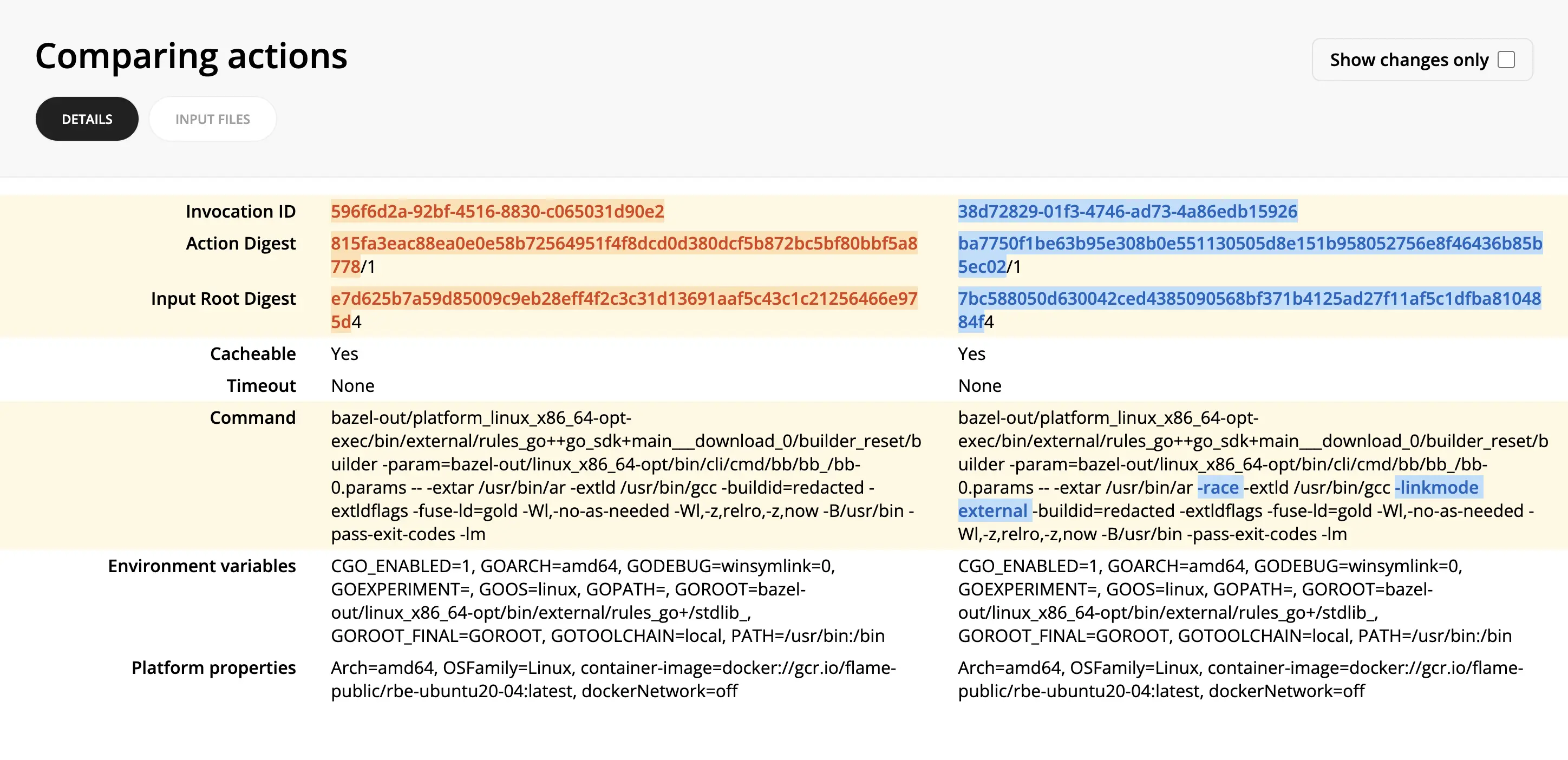
The compare actions view allows you to diff two actions side-by-side.

This can help pinpoint why two seemingly similar actions produced different results or didn't result in a cache hit.

To compare actions:

  1. From an invocation link, you can find the desired action either in the Cache or Remote Execution tabs.
  2. Click through to the Action Details view.
  3. Click Compare -> Select for comparison in the top right corner.
  4. Find the other action you want to compare it against.
  5. Click Compare -> Compare with selected in the top right corner of the second action.