Changelog

allfeaturedbazelplatformperformancetestingremote runnersdebuggingAI

bb explain: understand why your build re-ran actions

Fabian Meumertzheim

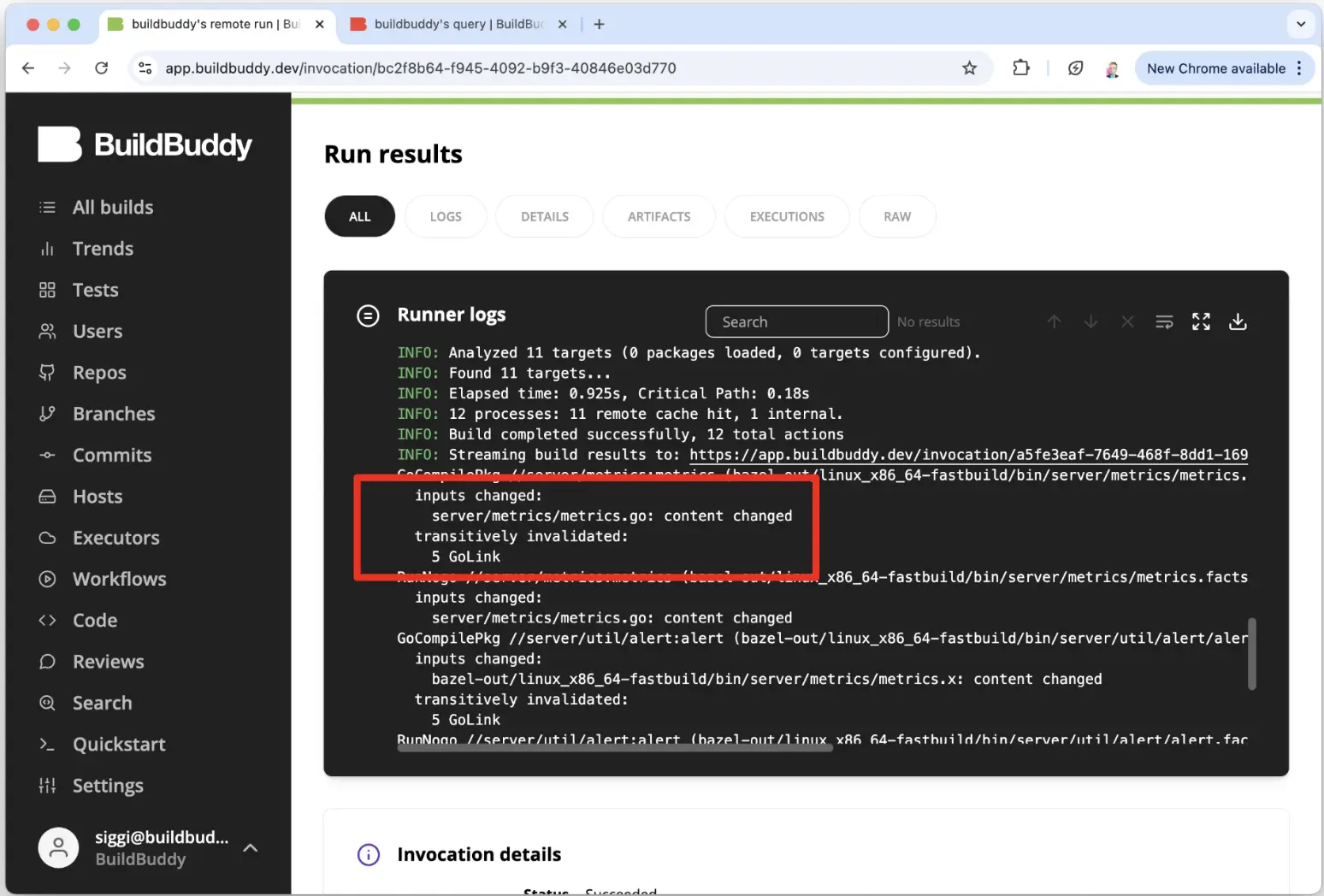
bb explain shows a structural diff of two compact execution logs. It helps answer the common questions: "Why did Bazel re-execute that action?" and "What changed between these builds?"

bb explain

It can highlight non-hermetic outputs and differences in inputs, environment variables, and arguments.

It works with your last two builds automatically, or you can point it at any invocation IDs:

bb explain
bb explain --old <OLD_INVOCATION_ID> --new <NEW_INVOCATION_ID>

You can download the bb CLI here. More details in Fabian's BazelCon talk.

Drilldowns: find similarities between slow or failing builds

Jim Hollenbach

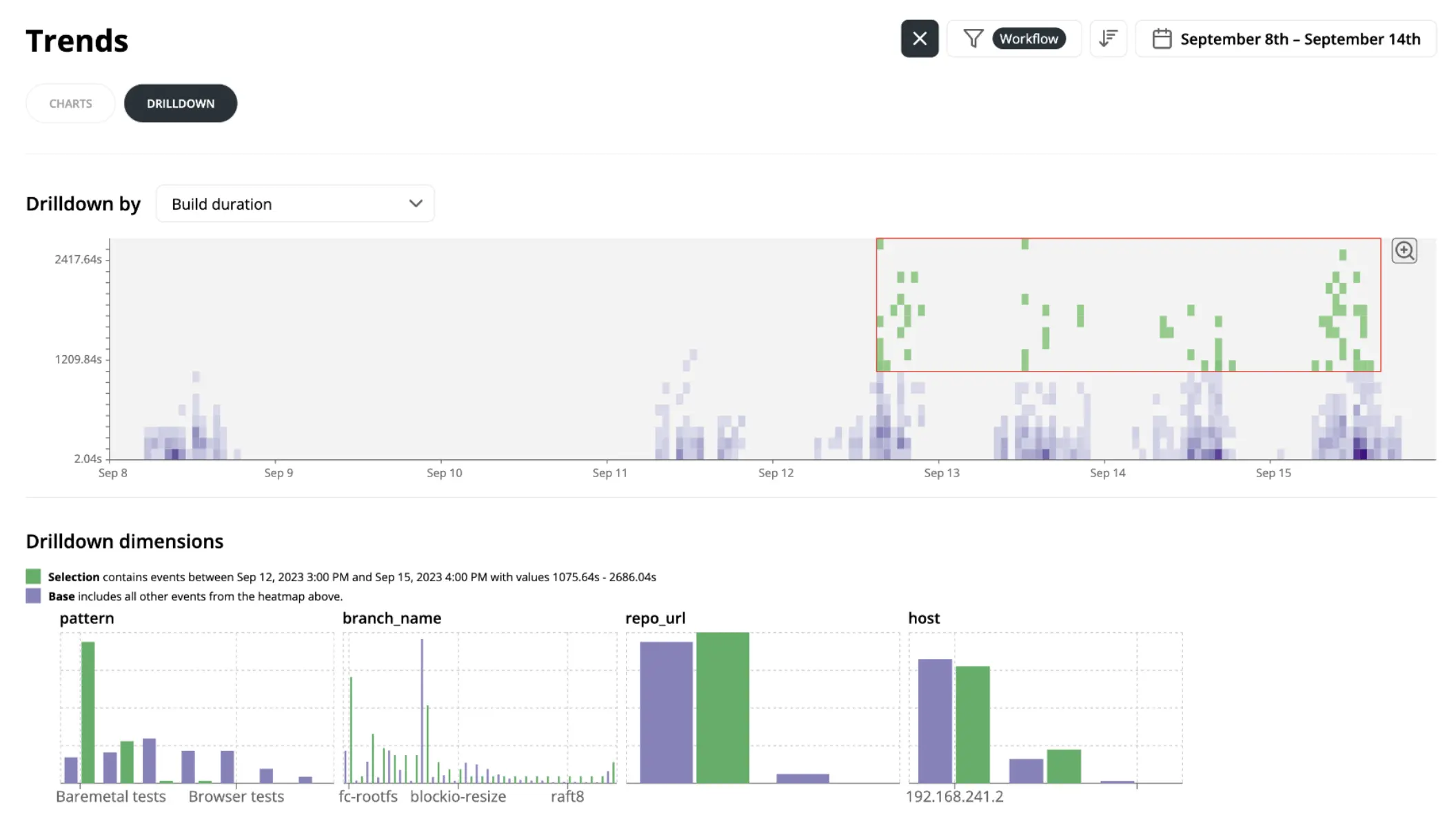
The Trends Drilldown view displays heatmaps of build and execution metrics over time. It can help isolate why a subset of builds is slower or failing more often.

You can select a region of outliers on the heatmap, and Drilldowns will compare that selection against the baseline across dimensions like branch, pattern, and tag.

This makes it easier to spot common characteristics of problematic builds.

Available on the sidebar under Drilldowns.

Compare Invocations: compare two builds side-by-side

Siggi Simonarson

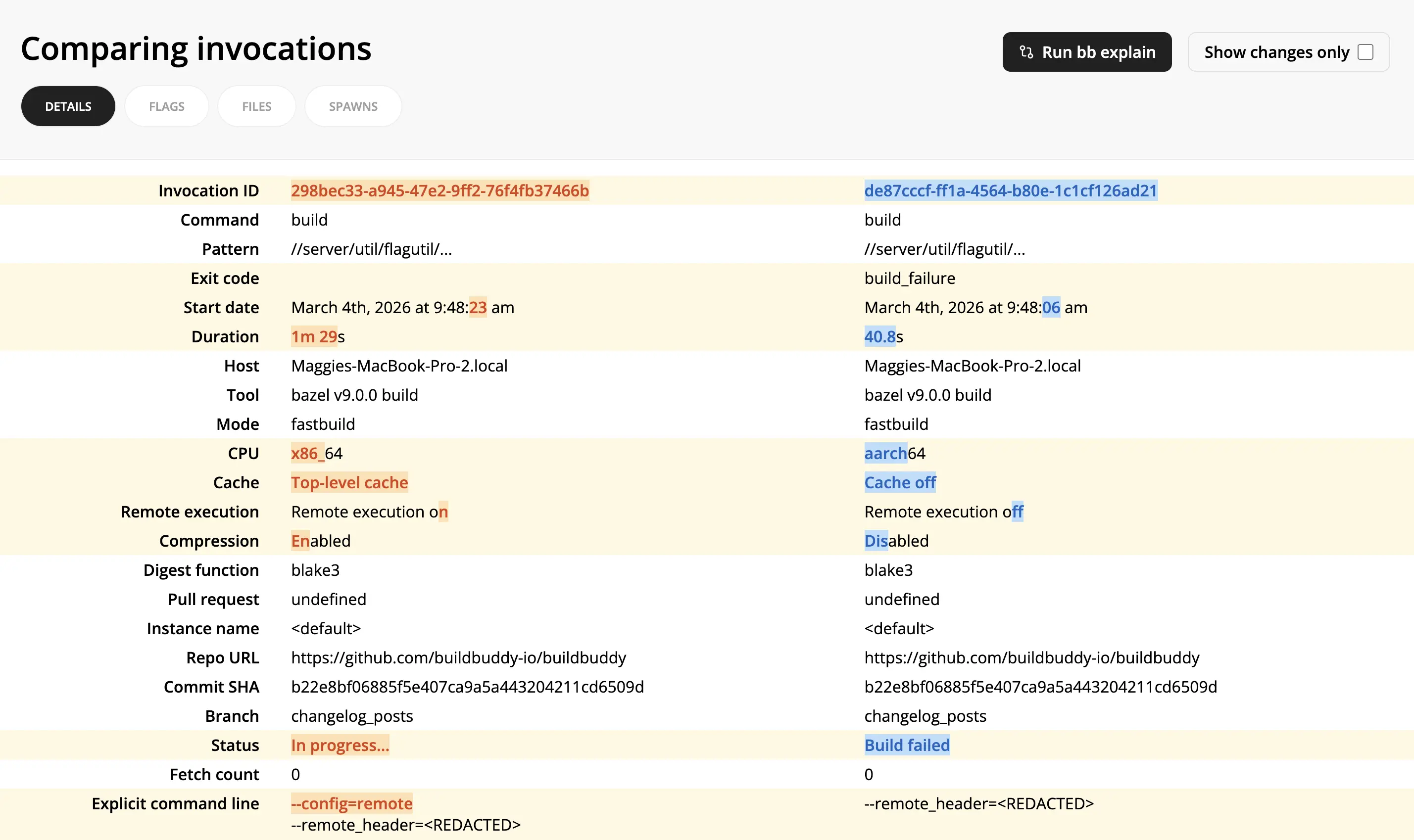
The Compare Invocations view allows you to diff two invocations side-by-side.

It can help debug why two builds produced different results by showing exactly what changed: different flags, startup options, cache/remote execution settings, status, and more.

To use Compare Invocations:

  1. From one invocation link, select Compare -> Select for comparison in the top right corner.
  2. From another invocation link, select Compare -> Compare with selected.
  3. For even more details on differences between the two invocations, click the Run bb explain button on the Compare Invocations page.

Compare Actions: compare two actions side-by-side

Siggi Simonarson

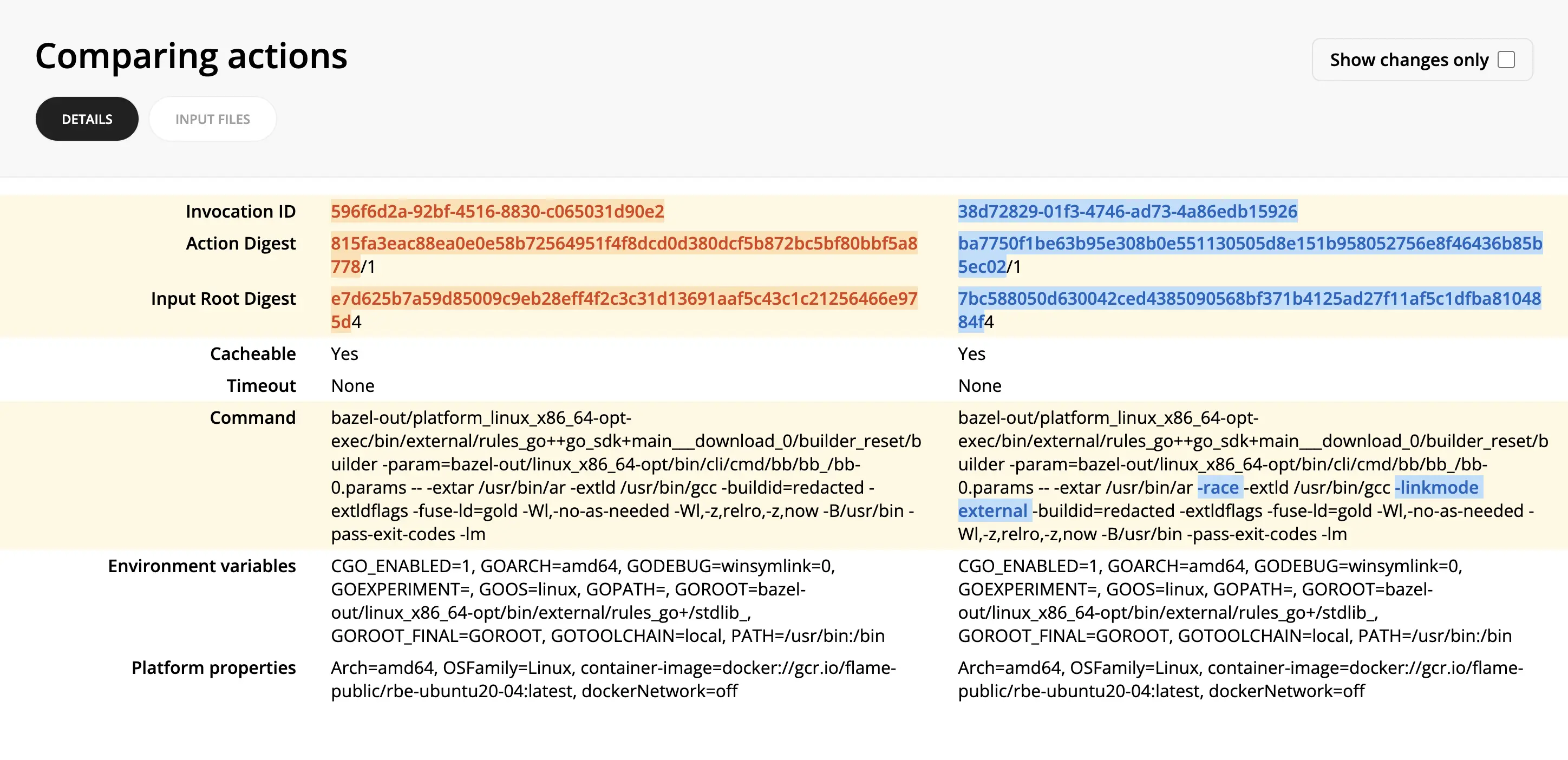
The Compare Actions view allows you to diff two actions side-by-side.

This can help pinpoint why two seemingly similar actions produced different results or didn't result in a cache hit.

To use Compare Actions:

  1. From an invocation link, you can find the desired action either in the Cache or Remote Execution tabs.
  2. Click through to the Action Details view.
  3. Click Compare -> Select for comparison in the top right corner.
  4. Find the other action you want to compare it against.
  5. Click Compare -> Compare with selected in the top right corner of the second action.